Because a good friend asked how I make my icons, I decided to tell you how you could do it e.g. in The GIMP.
Let's assume you have an image in a good looking resolution, like a 3D render result, preferably on a deep black background.
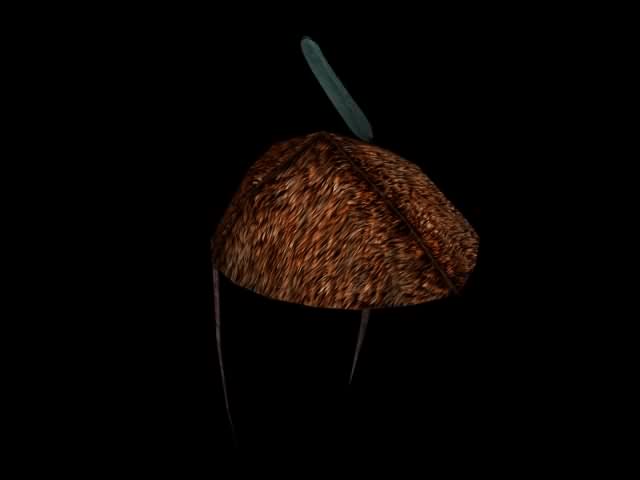
You will want to have it in the center of the icon, therefore I recommend to "exempt" the interesting part (on a unicolor background you could use the "Autocrop Image" function), and - after setting the background color to "black" - change the canvas size afterwards to a square with the length of the longer side plus about 10%. In GIMP, you will have to resize all layers while changing the canvas, and center the image before resizing.
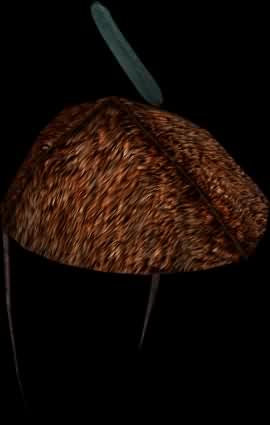
=>
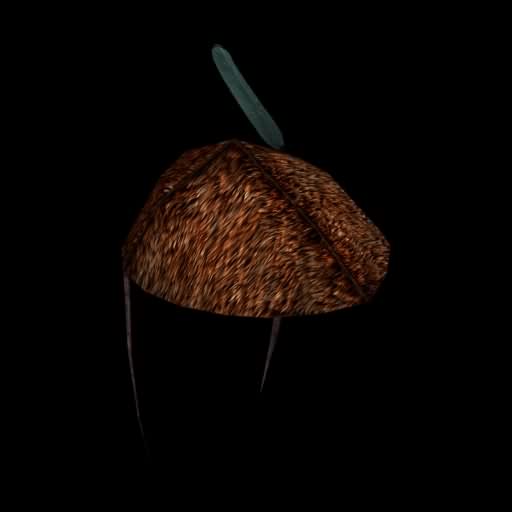 Now, we add the Alpha channel to the image layer!
Then it is time for the "Magic Wand". We will usually select by Composite, with edge smoothing, and a low threshold. We select the blackness around the object of interest ...
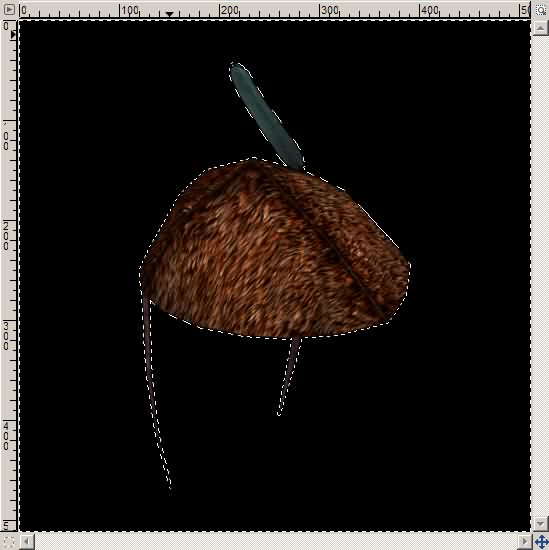
... and then we would want to select not sharply and exactly all blackness around the object, but rather smoothly, blurred -- because we want to get a kind of "black glow".
What if we would blur the selection inwards right now? -- Then we would get a black glow around the object, and also a black glow around the whole image itself. Bad idea.
Instead, let's do a little trick:
- invert the selection (that selects the object only)
- grow the selection smoothly (*)
- invert the selection again
(*) Better image editors may be able to manipulate the selection itself like a layer already.
The GIMP 2.3 seems not to provide this feature, so we have to use the "Quick mask" after inverting the selection, and growing it by ~10 pixels. (Menu: Selection - Enable/disable Quick Mask -- or the button in the bottom left corner of the image window.)
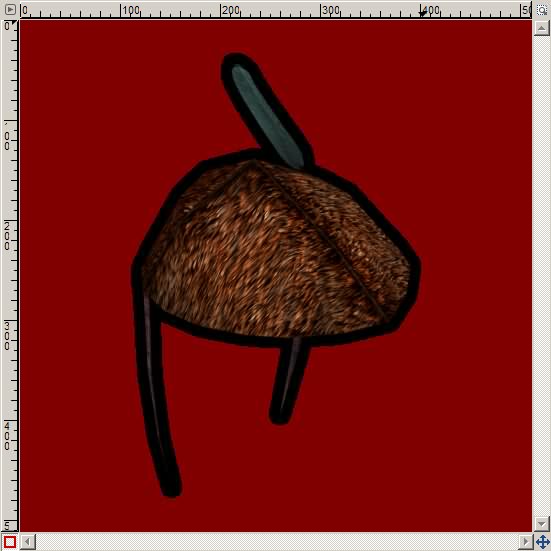
In the "Layers, Channels, Paths..." toolbar, switch to the "Layers" tab, and select the Quick Mask. Then apply a Gaussian blur with a radius of 2 times the selection growth amount.
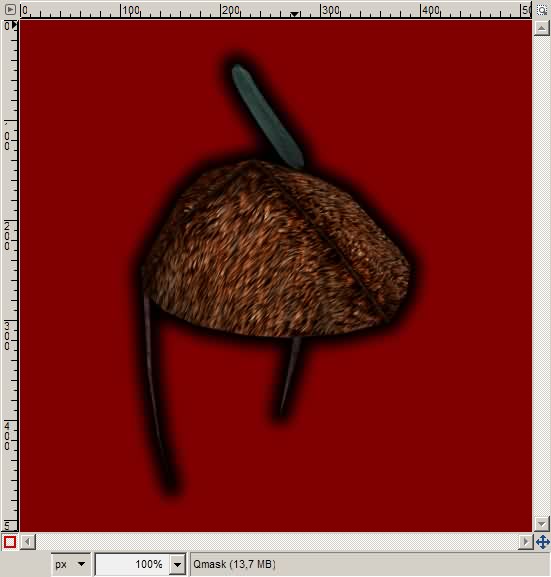
Then we can disable the Quick Mask.
Now we invert the selection back to the outer area, and press the "Delete" key on the keyboard...
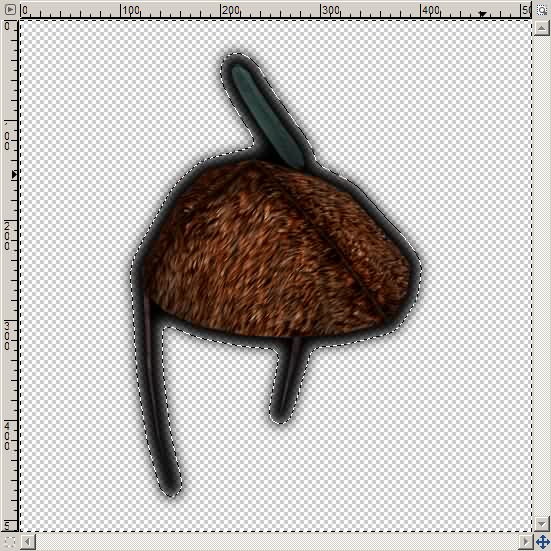
Deselect everything, a final scale to 64×64 pixels, save as PNG (in GIMP: do
not check "interlacing" - and "save colors from transparency" may not be necessary), and voila: Our icon is available.

